
Today’s topic ismachining centreA detailed guide to the control panel.
When it comes to working with machining centres—that is, CNC machines—the role invariably involves carrying out practical operations on the machinery. So, let me ask you: do you fully understand the buttons on the control panel? Here, I shall provide a detailed explanation to ensure you have a clear understanding.

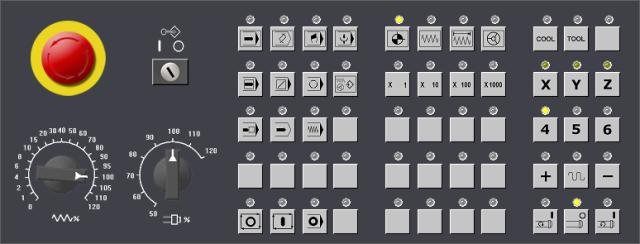
Take the control panel of a Franck machining centre as an example. This series
This is generally more common.
There is a red component known as a knob which is of critical importance; it is commonly referred to as the emergency stop button. When the machine is switched off, this button must be pressed, whilst when switching it on, the knob must be turned to the ‘on’ position. Should a particular emergency arise, pressing this button will bring the machine to a halt, Given that the work involvesmachiningYou may encounter dangers whilst working, so this button is absolutely crucial; you must remember it well.
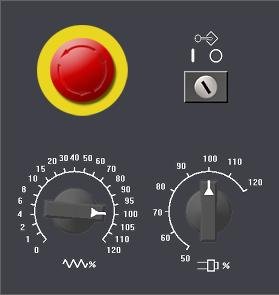
The button in the top-right-hand corner is the programme protection lock button. Normally, you need to switch it on when editing a programme. When it is switched off, you cannot edit the programme.
The switch for adjusting the machine tool’s cutting feed rate is located in the bottom-left corner; it is labelled the ‘Feed Rate F Multiplier Adjustment Switch’ and is extremely useful when setting up the machine.
The knob in the bottom right-hand corner is the spindle speed multiplier switch. It is used to adjust the spindle speed.
From left to right
When the first button is pressed, the programme runs automatically and the machine enters this mode. Once the machine has been set to this mode, it proceeds to the machining stage, which is carried out within this specific mode.
The edit mode associated with the second button is the mode in which any editing or modification to the programme must be carried out.
The button referred to as the third one is for manual mode. In this mode, you can enter short commands, such as the tool change command T1M6 and the spindle speed command.
The fourth is the programme execution mode, which is rarely used on standard machine tools.
From left to right
The first block is executed, with one CNC instruction executed at a time
Within the programme, there is a feature whereby a second section of code is skipped; whenever a slash appears within the scope of the programme, the instructions in that section are not executed.
Thirdly, the command that causes the programme to pause: within the programme, as soon as the M00 instruction is encountered, the programme will pause and will not continue to run.
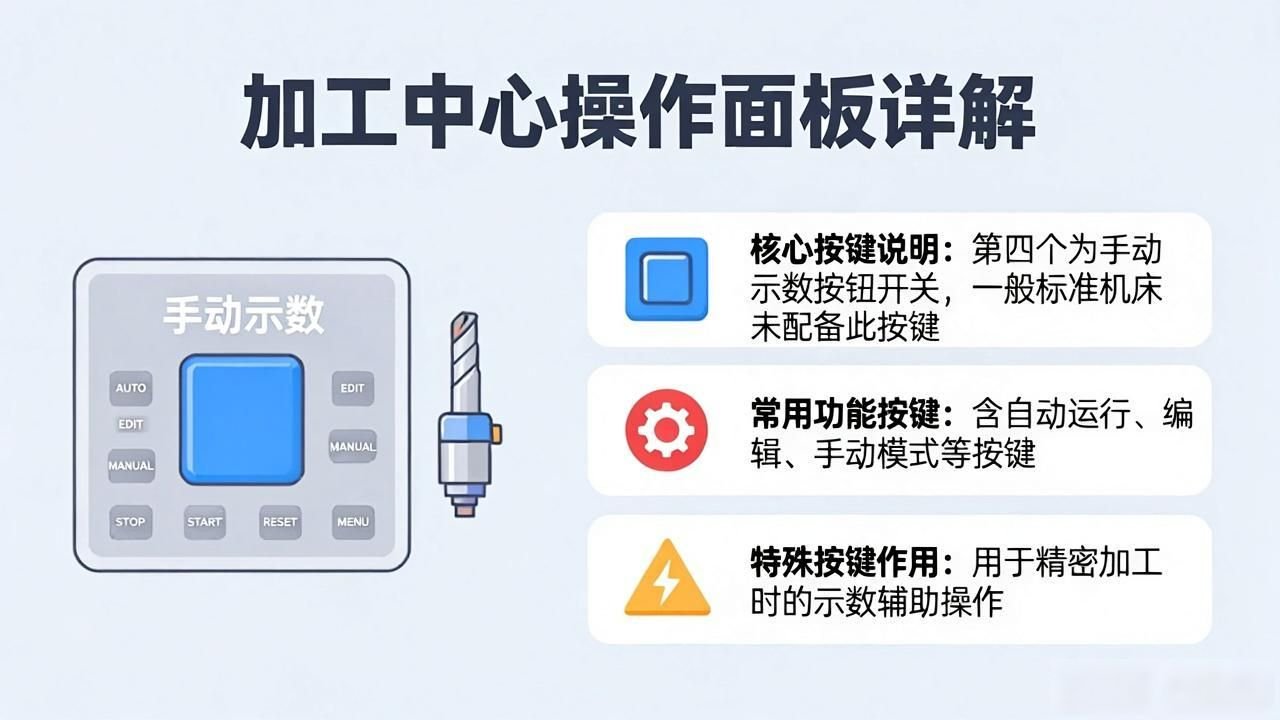
The fourth is a manual readout button switch, which is not usually found on machine tools.
The first button is the programme restart button; if the programme is paused and you wish to restart it, press this button.
The second button is the programme lock switch; when this button is pressed, the machine tool’s various axes are locked.
The programme for the third button is set to idle mode; when this button is pressed, the programme runs at the speed set for the machine tool. Under normal circumstances, it is not used for machining workpieces.
The first is the home switch, which is used when the machine tool is homing.
The second method is to operate the feed manually.
The third is operation in incremental mode
The fourth is the handwheel button
This multiplies the machine tool’s feed rate by the corresponding factor.
From left to right
The first programme has stopped running
The second programme begins to run
The third programme has been paused
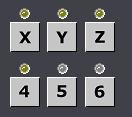
It’s quite simple: I just want the X-axis, Y-axis, Z-axis, fourth axis, fifth axis and sixth axis.
These scenarios correspond to positive and negative movements along the axis; if the middle button is pressed at the same time, rapid movement will occur.
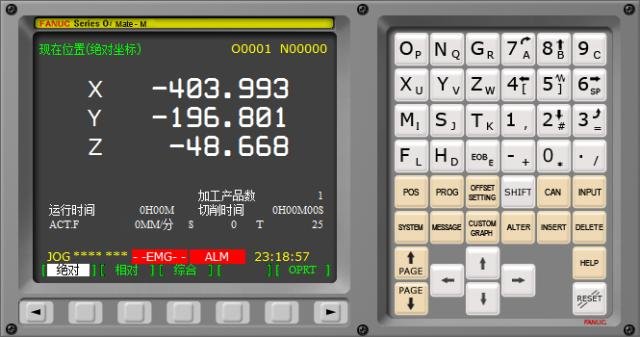
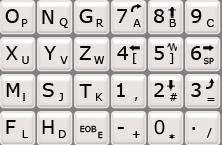
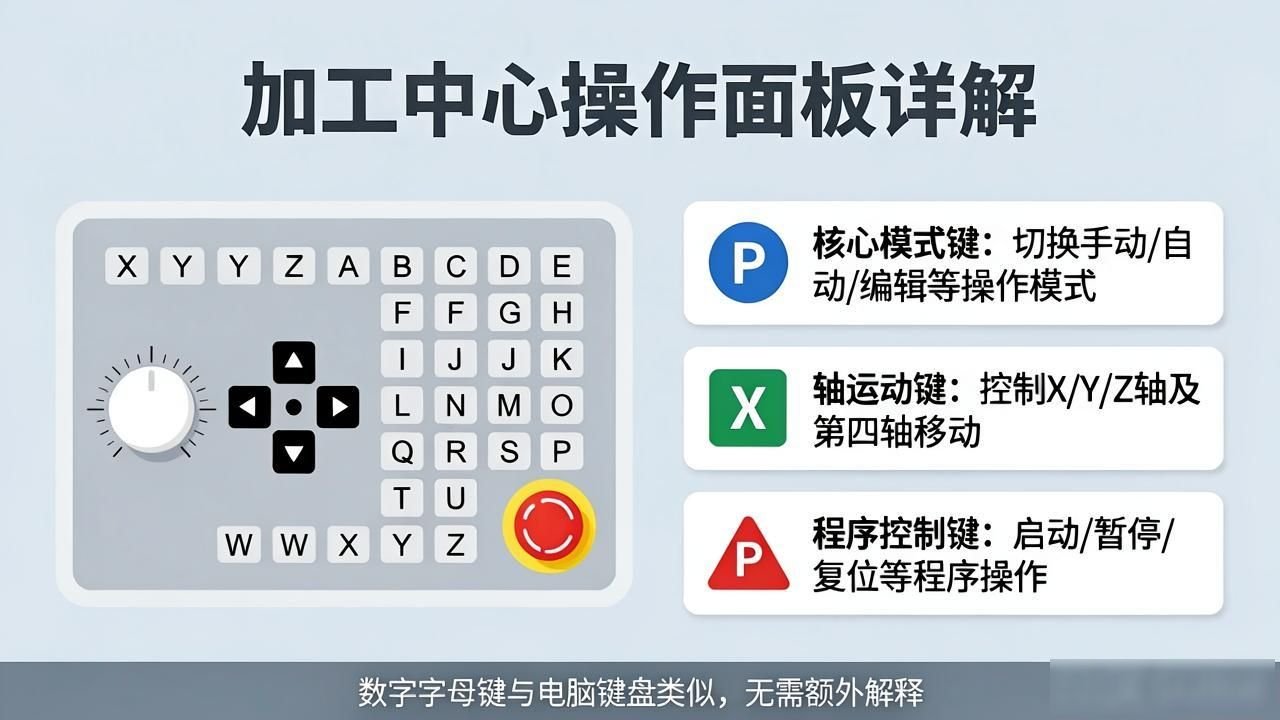
I won’t go into detail about this row of alphanumeric keys; they are similar to those on a computer keyboard.
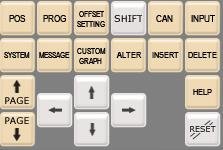
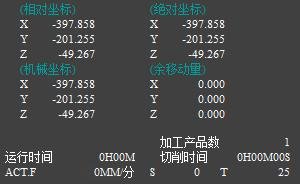
The POS key refers to the coordinate system. Press this key as shown in the figure below.
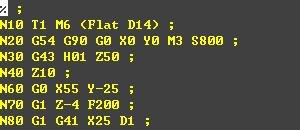
prog: Pressing this key invokes the handler
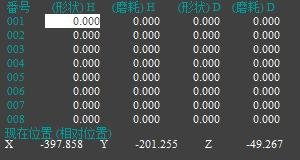
It means the ‘knife buff’ setting
'Shift' is the same as the shift key on a computer
'can' means the 'Cancel' button
‘input’ refers to data entry, primarily for tool setting and the input of certain parameters.
It refers to the system. It is mainly used to adjust certain system parameters.
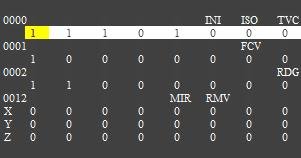
These are some machine tool prompts
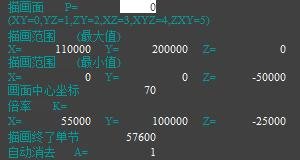
This is the settings screen for graphics parameters.
‘alter’ means ‘to replace’ and is mainly used when editing programmes.
It means ‘insert’; this serves as a code insertion function when editing programme instructions.
It means to delete the code
 Chinese
  Japanese
  English
  German
  Finnish
Leave a Reply
You must be logged in to post a comment.